🚀 Day 3: Mastering Linux Commands 🐧
"Passionate about simplifying the complexities of DevOps, I bring 5 years of hands-on experience in supporting development and operations teams to achieve faster, more reliable software delivery. I thrive on optimizing CI/CD pipelines, automating workflows, and troubleshooting challenges across diverse cloud environments. My expertise spans across infrastructure management, continuous integration, and performance monitoring—ensuring stability and efficiency at every stage of the software lifecycle. Always eager to learn, collaborate, and innovate, I’m committed to driving impactful change in the DevOps space."
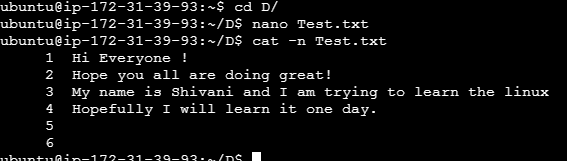
Task 1: View the content of a file and display line numbers.
Task 2: Change the access permissions of files to make them readable, writable, and executable by the owner only.
Command syntax:
Here's what this command does:
7 means the owner has read (4), write (2), and execute (1) permissions (4 + 2 + 1 = 7).
0 means no permissions for the group.
0 means no permissions for others.

Checking the permissions:
You can verify the permissions using the ls -l command:
The output should look like this:

This indicates that only the owner has read, write, and execute permissions, while the group and others have no access.
Explanation:
r = Read (4)
w = Write (2)
x = Execute (1)
- = No permission
The numeric 700 is a shorthand for:
Owner: Read, Write, Execute (rwx = 7)
Group: No permissions (--- = 0)
Others: No permissions (--- = 0)
Now, only the owner can read, write, and execute the file.
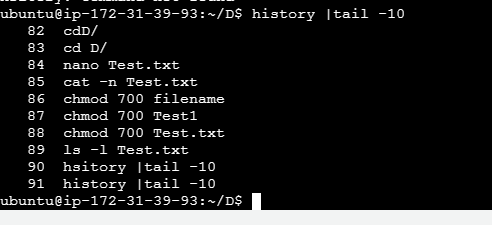
Task 3: Check the last 10 commands you have run.
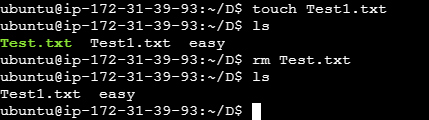
Task 4: Remove a directory and all its contents.
Task 5: Create a fruits.txt file, add content (one fruit per line), and display the content.
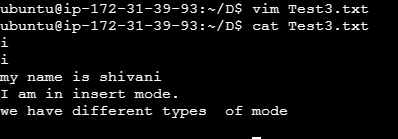
Task 6: Add content in devops.txt (one in each line) - Apple, Mango, Banana, Cherry, Kiwi, Orange, Guava. Then, append "Pineapple" to the end of the file.
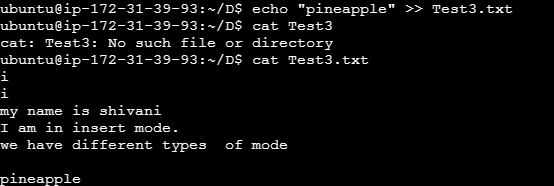
The echo command in Linux is used to display a line of text or a variable value. The -e option enables the interpretation of backslash escapes (like newline, tab, etc.) in the output.
Task 7: Show the first three fruits from the file in reverse order.
Task 8: Show the bottom three fruits from the file, and then sort them alphabetically.
Task 9: Create another file Colors.txt, add content (one color per line), and display the content.
Task 10: Add content in Colors.txt (one in each line) - Red, Pink, White, Black, Blue, Orange, Purple, Grey. Then, prepend "Yellow" to the beginning of the file.
Task 11: Find and display the lines that are common between fruits.txt and Colors.txt.
Task 12: Count the number of lines, words, and characters in both fruits.txt and Colors.txt.